
How can we help?
Find clear answers and step-by-step guides for your shifts.
Search results
Choose an answer to open it in the right topic.
No matching answers
Try a shorter search, or return to all topics.
Set up my schedule
Choose the workplace and group that match your real shift pattern.
How do I set up my shift schedule?
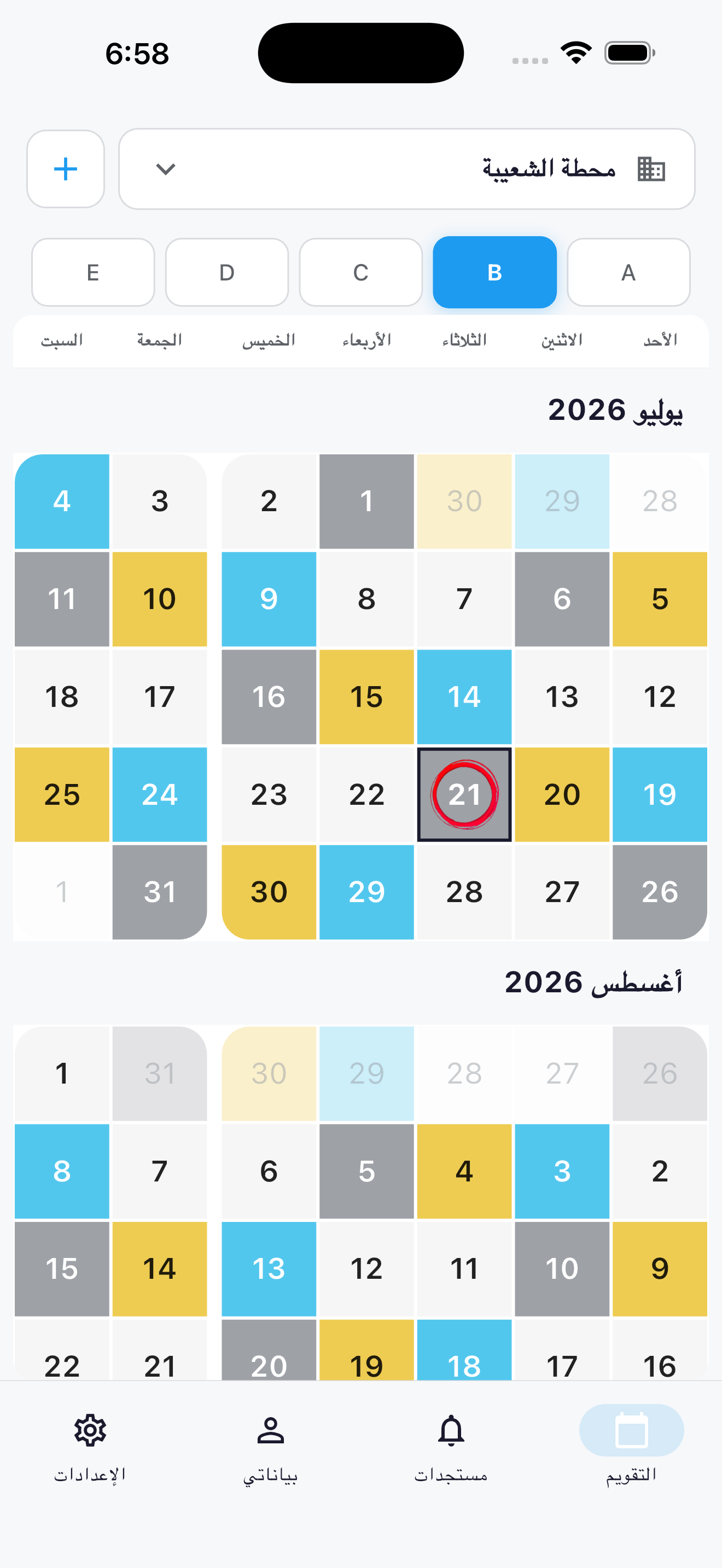
Your workplace and group control the shifts shown on the calendar.
- Open Calendar.
- Tap the workplace control at the top.
- Choose your workplace.
- Choose the correct group from the buttons below it.
What if my workplace is not listed?
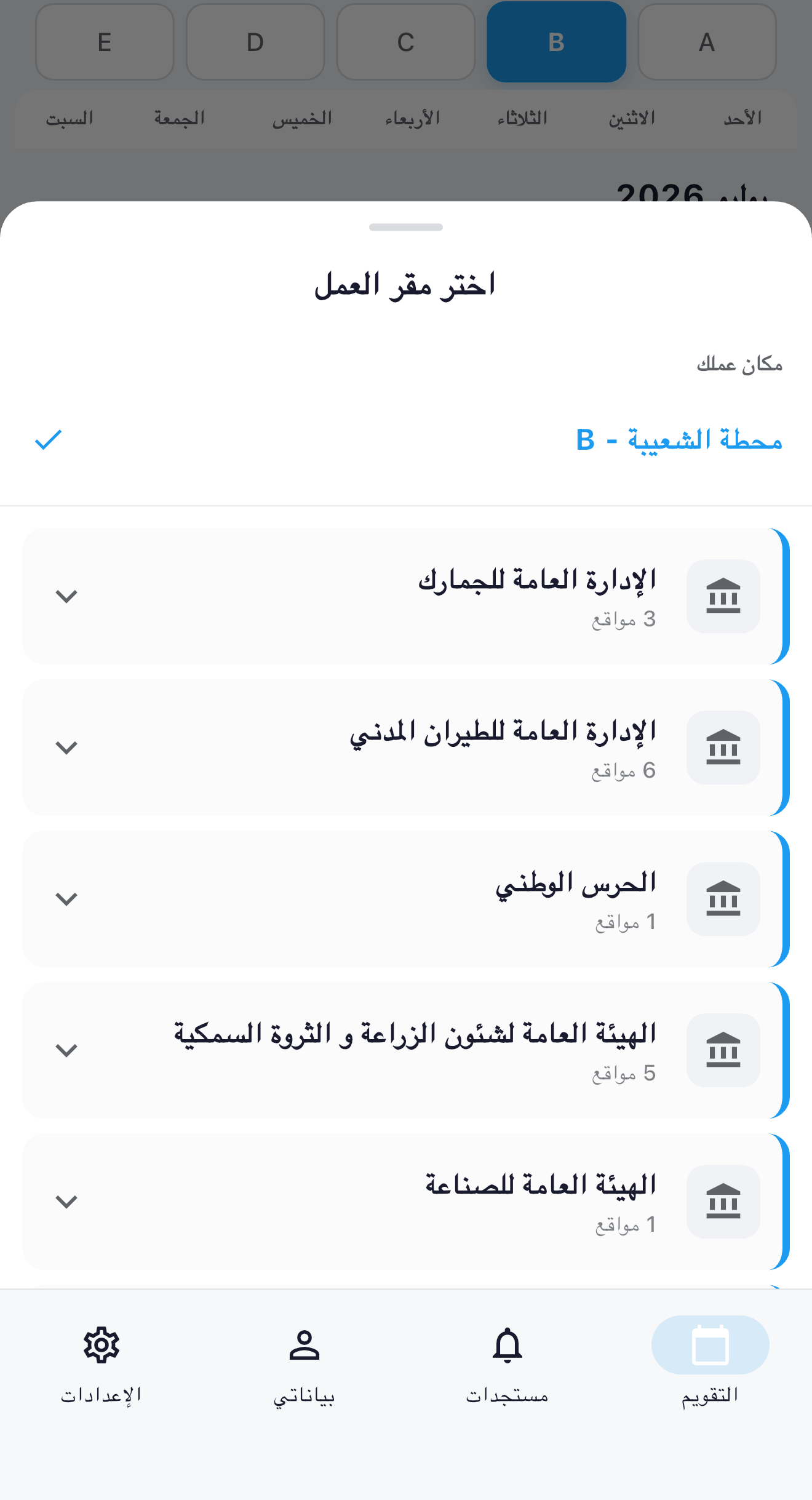
You do not need to wait for a catalog update. Create a custom workplace from the workplace picker.
- Open the workplace picker from Calendar.
- Choose Add a new workplace.
- Select your work type, repeating pattern, shift times, group name, and today's shift.
How do I change my main workplace?
Choose another workplace from the control above Calendar. Shiftat first lets you browse it. Use the banner on Calendar if you also want to make it your main workplace.
Fix my shift calendar
Check the selected schedule first, then send a correction when catalog data is wrong.
My shifts do not line up. What should I check?
- Confirm the workplace shown above Calendar.
- Confirm the selected group directly below it.
- Compare today's shift with your real schedule.
- If the catalog is still wrong, open Settings, Help & Support, then Send feedback and choose schedule correction.
Which calendar features work offline?
The core calendar, bundled schedules, and locally saved entries remain available without a connection.
Can I create my own repeating shift pattern?
Yes. From the Calendar workplace picker, choose Add a new workplace. The guided setup asks for the pattern, optional shift times, a group name, and today's shift so the cycle lines up.
Mark leave & special days
Save leave, permission hours, time entries, and notes from a calendar date.
How do I mark a day as leave?
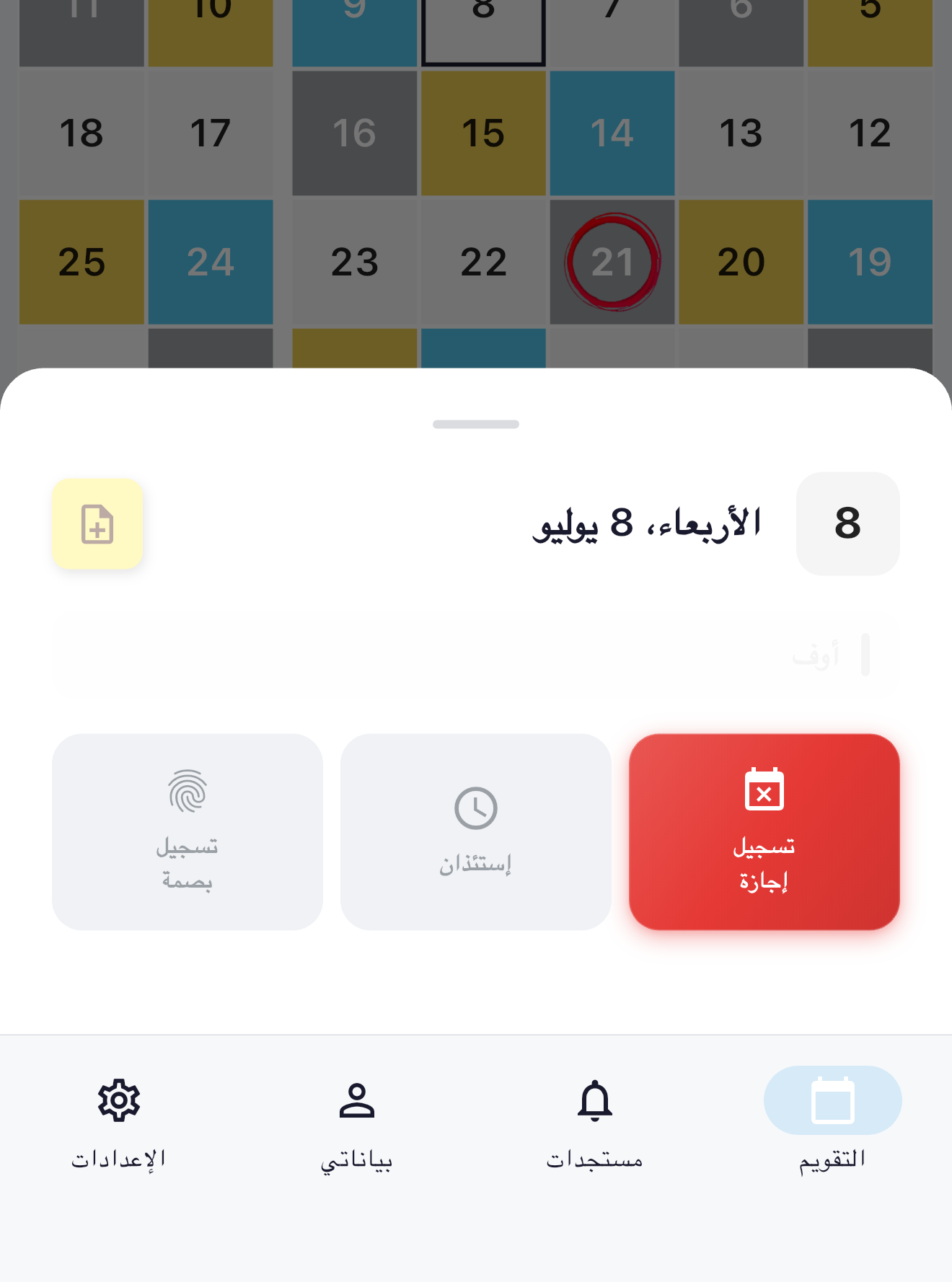
- Tap the date on Calendar.
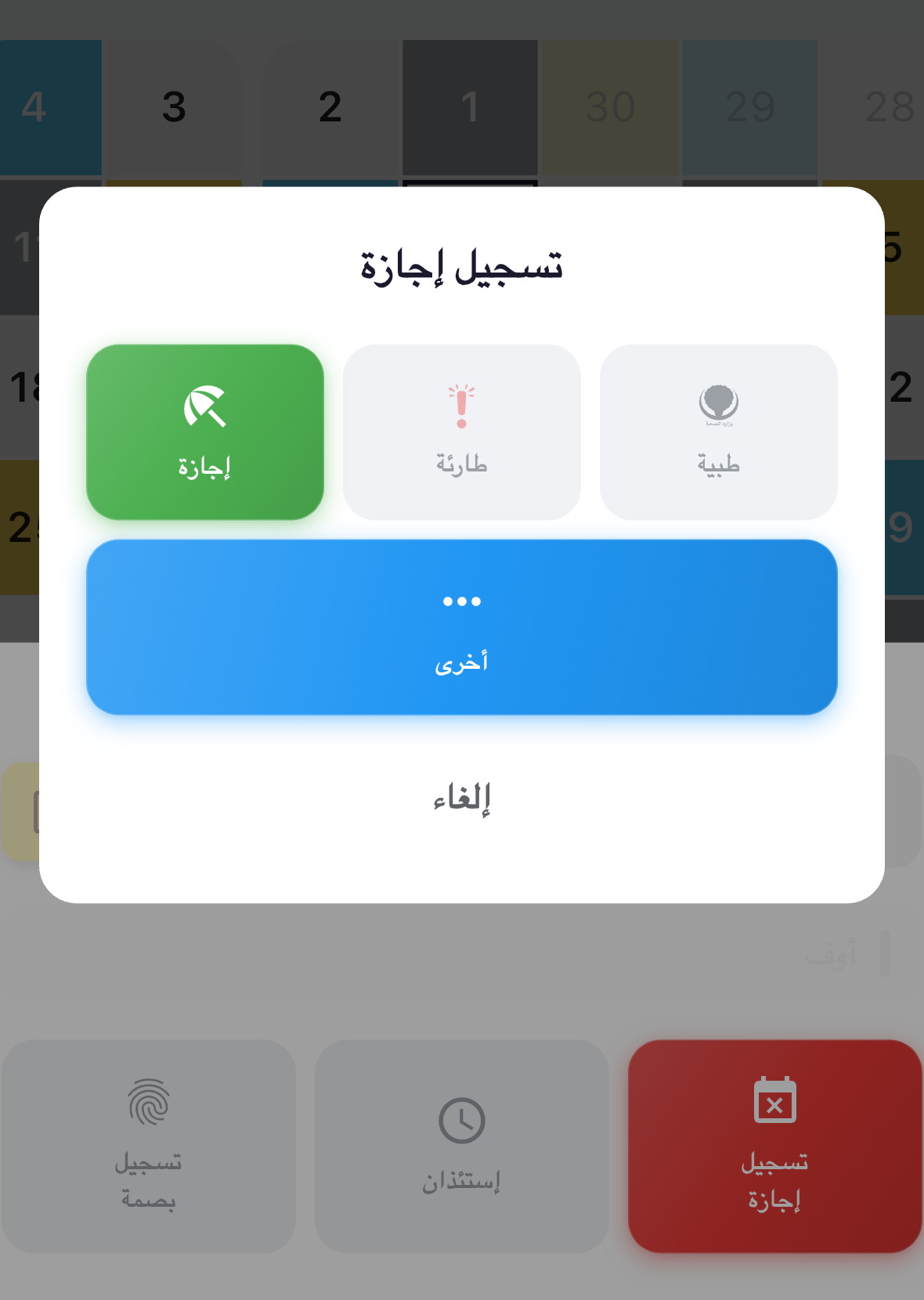
- Tap Mark Leave.
- Choose Sick, Emergency, Vacation, or Other.
How do I record several vacation days?
Choose Vacation, set the start date, then choose a length from one to forty days. Other also supports a custom name and date range.
Where do I add permission hours, a time entry, or a note?
Tap a date on Calendar. The same date sheet includes Permission, Time Log, and Notes alongside Mark Leave.
Account & backup
Use Shiftat without an account, or sign in for backup and recovery.
Do I need an account to use Shiftat?
No. You can keep using the core app without an account. An optional account supports backup and recovery when you change devices.
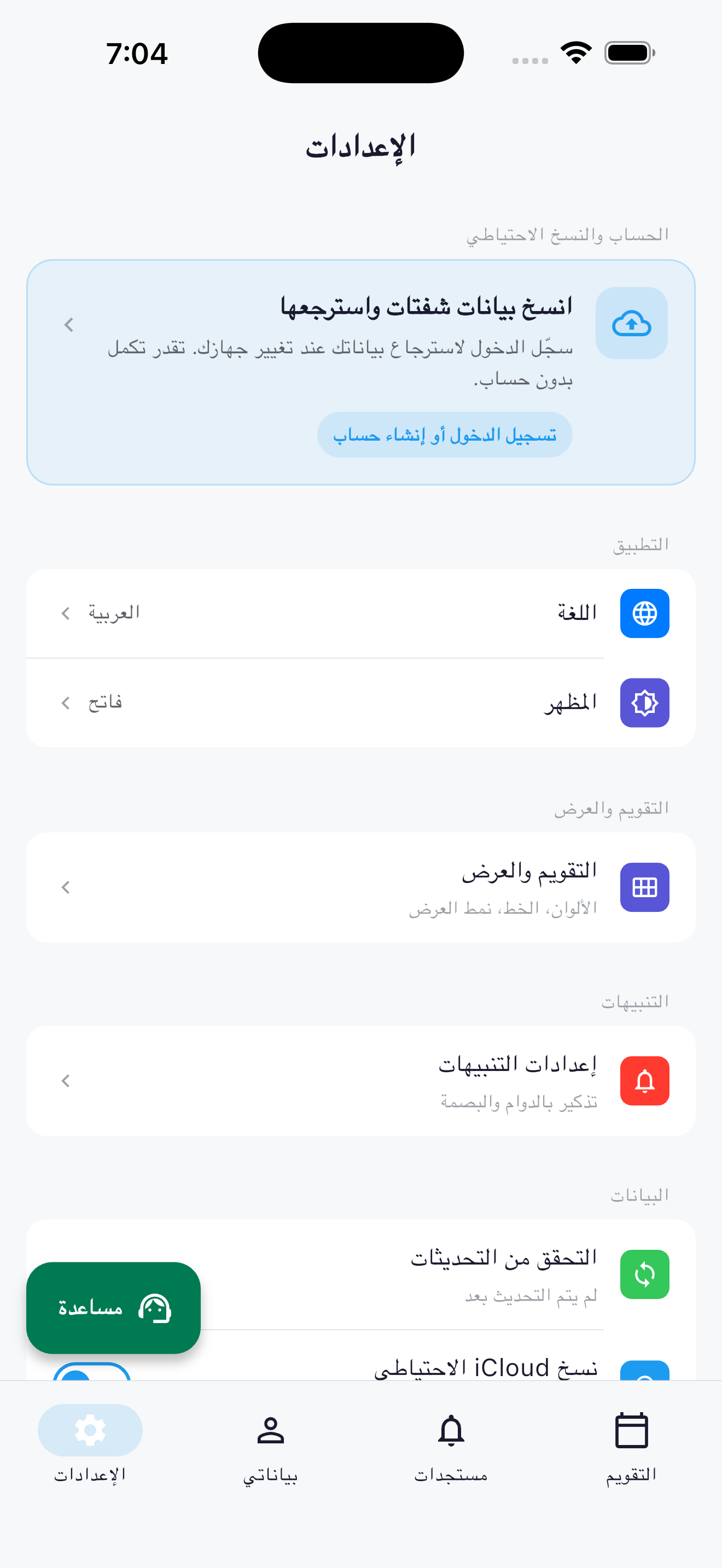
What can account backup include?
Account backup can include settings, notification settings, leave entries, notes, permission hours, time entries, duty data, and custom workplaces.
What happens when I sign out?
Your local data stays on this device and future automatic account backup stops. Signing out does not delete an existing cloud copy.
How can I move or restore my data?
Sign in to recover an account backup, or use Export Data and Import Data for a restorable backup file. On iPhone, device cloud backup is separate from Shiftat account backup.
Customize the calendar
Adjust the calendar layout, shift colors, text, language, and notifications.
Where can I change calendar colors and layout?
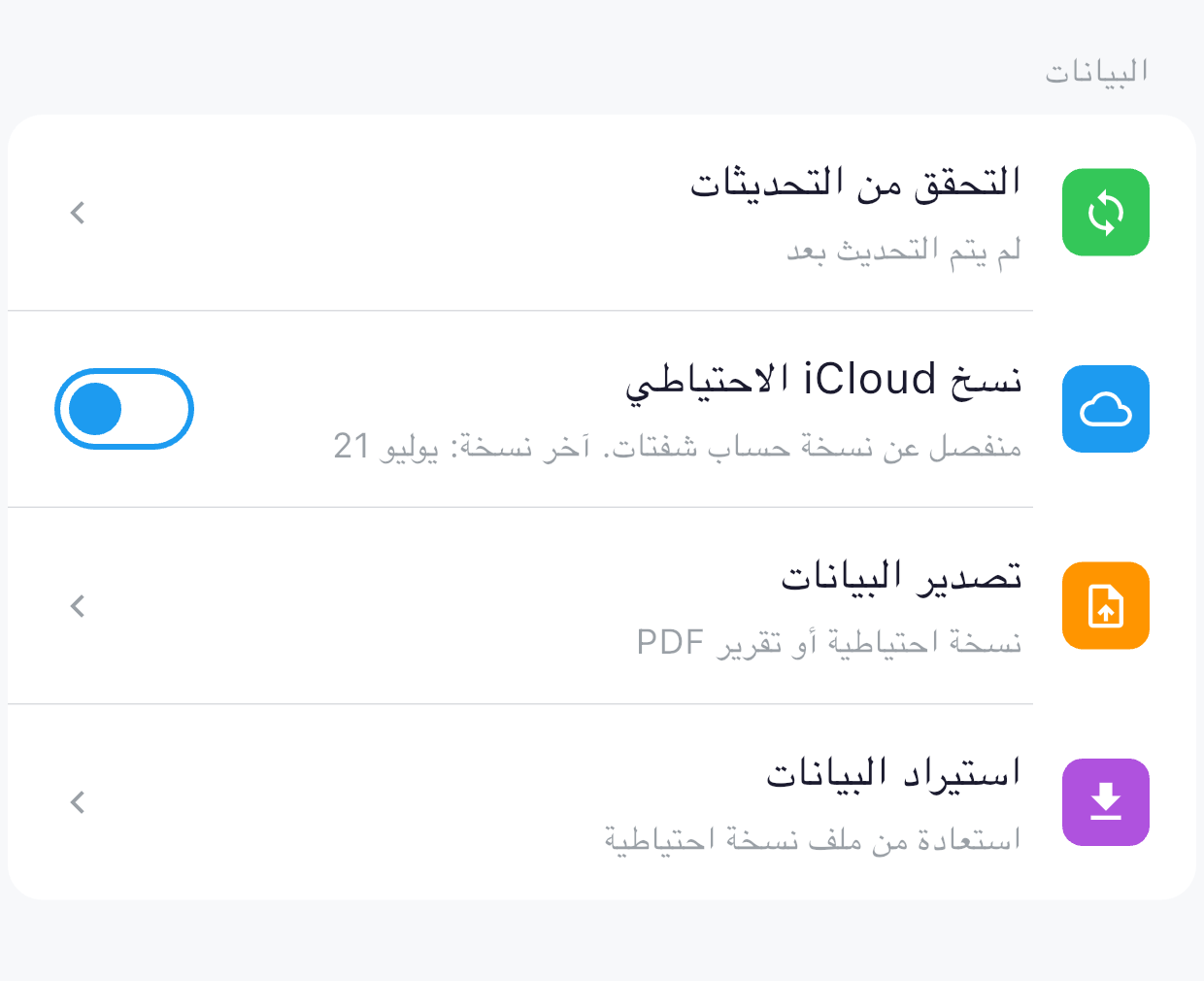
- Open Settings.
- Open Calendar & Display.
- Choose Calendar style, Week layout, Shift colors, Font size, Cell spacing, or weekend options.
How do I change language or appearance?
Open Settings, then use Language or Appearance near the top of the page. Calendar & Display contains the more detailed calendar appearance controls.
Why do notifications use a different workplace?
The workplace you are browsing on Calendar can differ from the workplace pinned for notifications. Open Settings, Notification Settings, then check Notification Workplace and the selected group.
Troubleshoot the app
Refresh schedule data, send useful feedback, and follow support replies.
How do I check for schedule updates?
- Connect to the internet.
- Open Settings.
- Tap Check for Updates.
Your existing core calendar remains available if an update check cannot connect.
How do I report a problem and follow the reply?
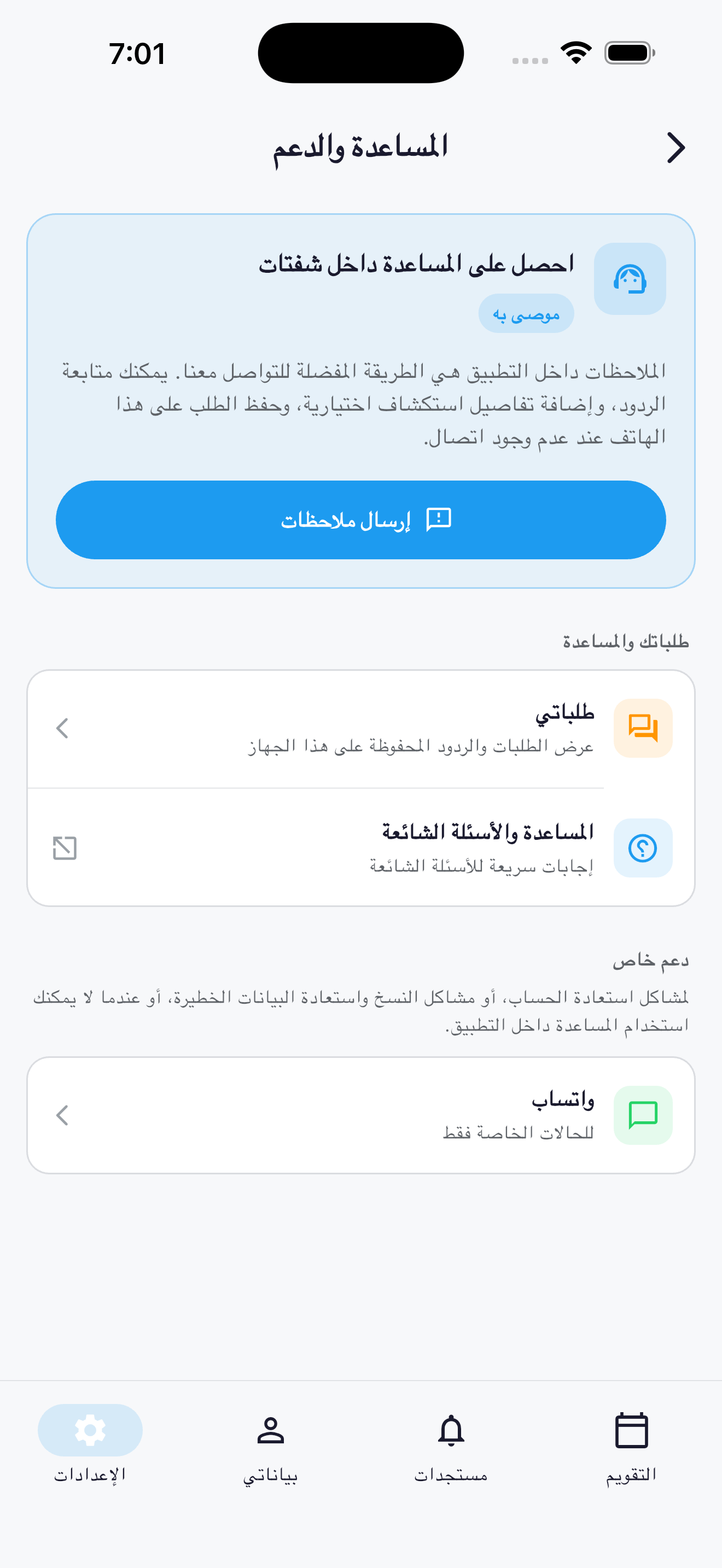
- Open Settings.
- Open Help & Support.
- Tap Send feedback.
- Return to My requests to follow replies.
Can I write a support request while offline?
Yes. Shiftat can save the request on this phone while offline and send it when a connection is available.
When should I use special support?
Use the WhatsApp option inside Help & Support only for account recovery, serious backup or data recovery, or when in-app support cannot be used.
Contact support
The recommended route is inside Shiftat, where you can follow replies and choose what troubleshooting details to share.
Send feedback inside Shiftat
Feedback includes your app version, platform, and language. Device and connection details are optional.
- 1Open Settings
- 2Open Help & Support
- 3Tap Send feedback
Need another support route?
For account recovery or serious backup and data recovery, use WhatsApp inside Help & Support. If Shiftat cannot be opened, email us.